Reading time:
How to Fully Brand Your White Label Patient Portal
Learn how to customize your patient portal with your own logo, colors, fonts, chat bubbles, and more — in just a few clicks.

Article written by
360io
1. Update Your Logo & Footer
Go to General Settings → Patient Portal
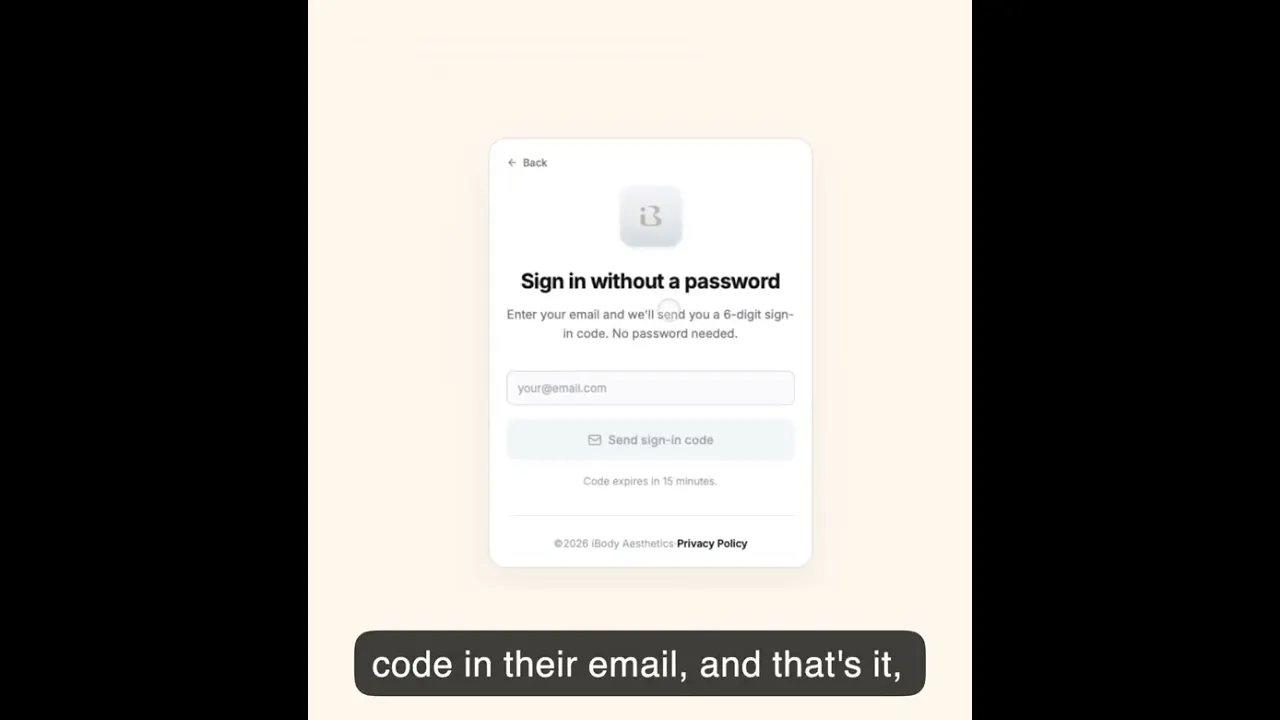
Upload your clinic’s logo — it will appear instantly in the patient portal
Update the footer text, privacy policy link, and App Store / Google Play links
2. Brand Your Colors & Appearance
Go to Patient Portal → Appearance
Choose your primary brand color (it will apply to buttons, backgrounds, and the mobile app)
Change the background color
Select your preferred font
Pro Tip: Your patients will see these exact colors in the portal and in the iOS/Android app.
3. Customize Login Options
Enable/disable Apple ID, Google login, and email code login
We recommend keeping Email + Code as the main option for the fastest patient experience
4. Brand Your Chat Bubbles
Go to Patient Portal → Messenger Colors
Set your clinic’s colors for sent and received messages
These colors will appear the same in the web portal and the mobile app
5. Use Your Own Email for Notifications
Add your custom “From” email address so all patient emails (appointment reminders, e-signatures, portal invites, etc.) come from your clinic, not 360io.com
Article written by
360io
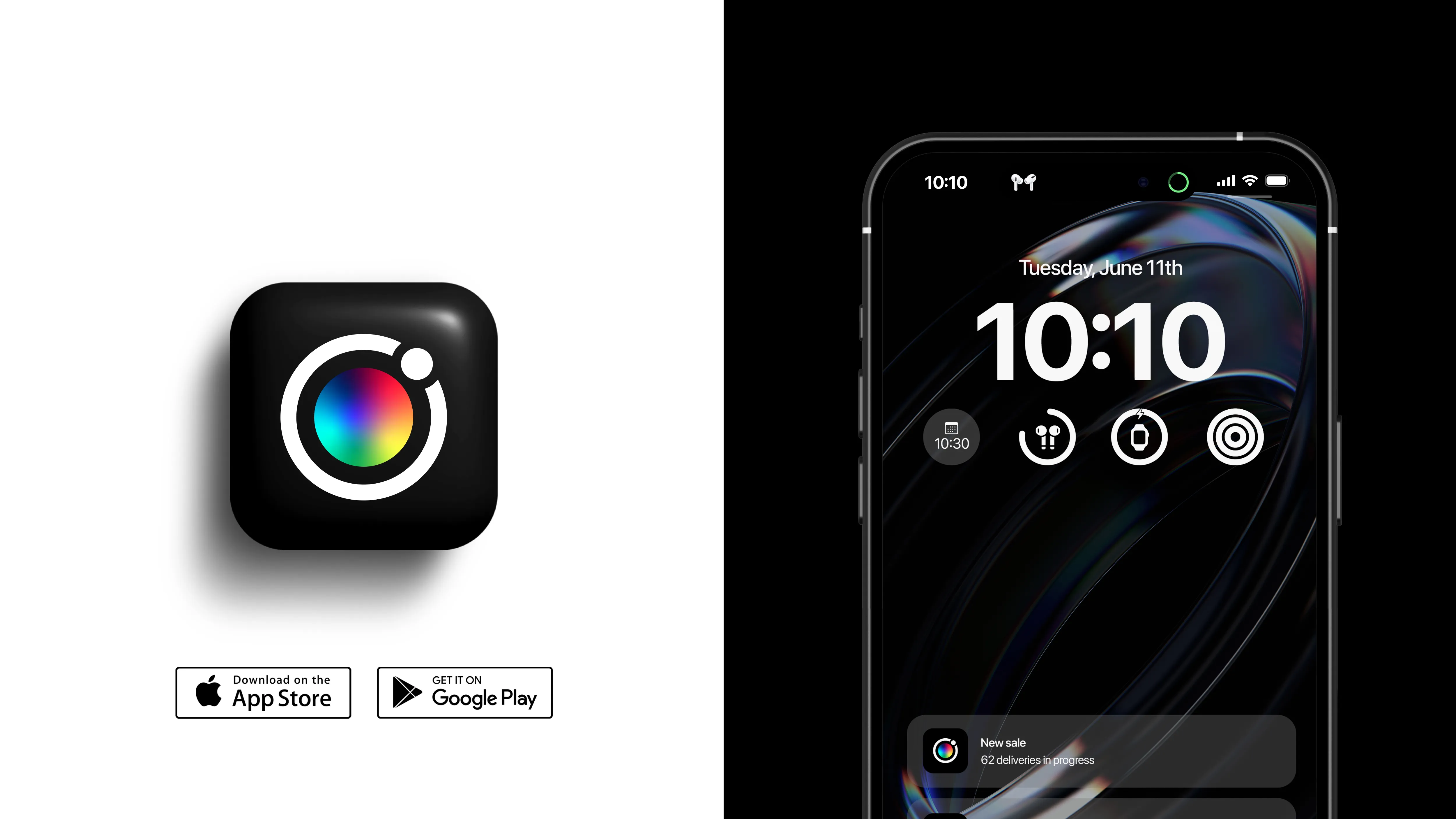
"Your logo. Your links. Your brand."
Fully branded patient portal. Your logo. Your colors. Your name.